
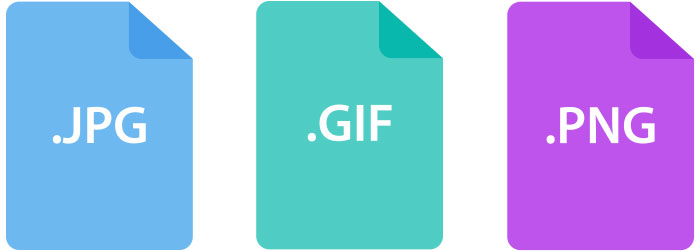
Understanding which file formats work for websites and web browsers is important. It’s also important to understand the differences and why they are used for specific images.
There are 3 image file formats we’ll be working with: .JPG, .GIF and .PNG.
Let’s begin.
Phew! I know that was a lot to take in! Here’s a quick recap on the image types…
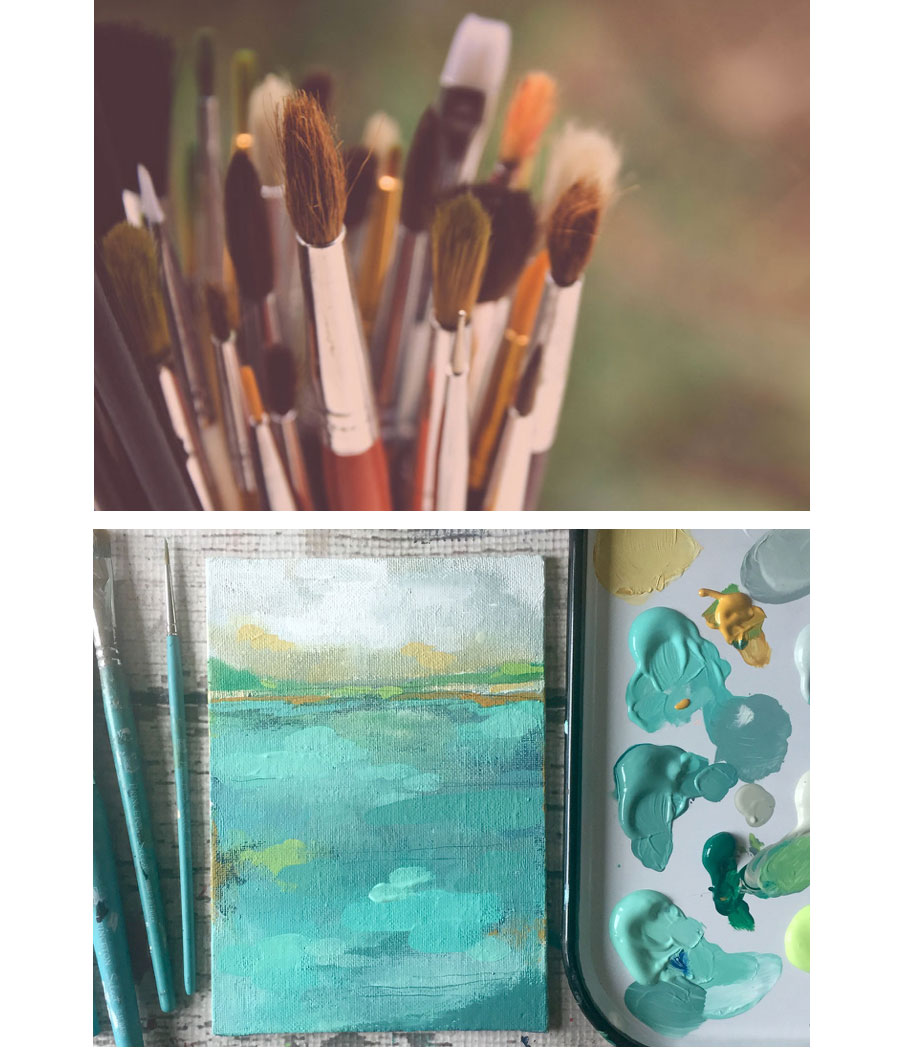
JPG
Images
Photographs
GIF
Logos
Solid Colors

PNG
Transparency
Images with Text

There are a lot of image editing tools available but one of my favorites is Canva. You can create amazing, professional graphics for your website, social media and email marketing campaigns. It will make you look like you hired a designer! :)
First, let’s set up a FREE account with Canva:

Now let’s walk through editing and exporting our images within Canva. First we’ll cover the basics of editing an image. We’ll start with setting up our “hero” image. You may be asking “what’s a hero image?”. This is the main image we’ll use for the top of all our website pages. A “hero image” is just the first image your visitors will see when they view your web page(s).
***Be sure to use the "hero-sample" image in your "File Formatting" classroom folder.***
Isn’t using Canva a lot of fun? I’ve used PicMonkey for years but I find so much inspiration using Canva.
Next let’s create another graphic for our classroom page. We use Canva a lot for creating our own classroom thumbnails. It’s so much fun to create unique classroom designs with each new class launch.
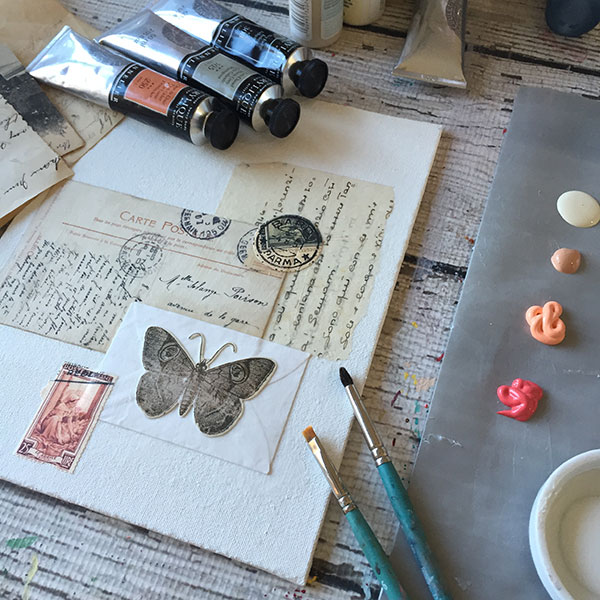
The great thing about creating a 1500 x 1500 pixel image is how easy it is to fit within your website, social media and email marketing campaigns. One image works for all!
***Be sure to use the "classroom-sample" image in your "File Formatting" classroom folder.***
Let’s begin…
That covers the basics of using Canva. I hope you’ll continue to explore the wonderful templates and find inspiration for your next design for your website or other marketing creation.
Here are other helpful image editing tools. Explore each and find which tools you feel most comfortable with.
Now that we've covered editing your images and saving them to your computer, there's one final video we'd like to walk through.
Because all devices have different screen sizes and resolutions, it required us to create the same image in different sizes so they would display correctly on the right device and browser (it was very time consuming). The great news is you no longer need to do this for your website! Squarespace makes it simple by allowing you to only upload one image for your web page.
You'll see in the video below just how great this feature is!
That's it! We've covered the proper file formatting techniques and the tools we use when editing our images. Have fun with Canva! I love this tool for editing my own images and I can't wait to see what you create for your website.
Now it's time to begin building your brand identity, learning the basics of website building and how to properly plan your website's structure and layout...